Warehouse Pick & Pack Operations
Once Sales Orders are confirmed (PENDING), they must be picked from warehouse shelves and packed into shipping cartons. WMSBIZ streamlines this workflow with guided screen-by-screen picking, multi-box carton packing, barcode verification, and automated courier label generation.
1. The Picking Process
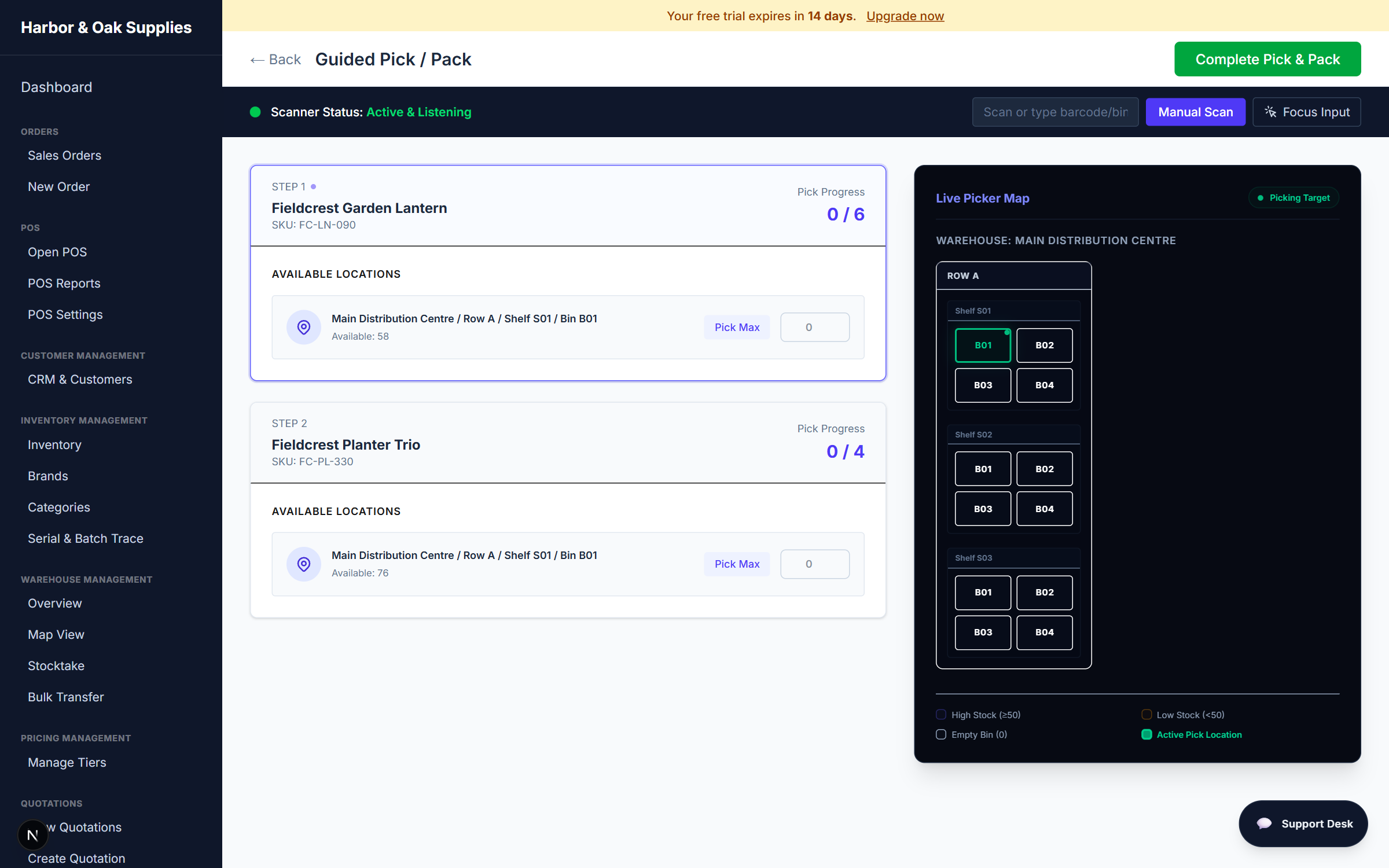
- Open the Fulfillment > Pick & Pack dashboard.
- Task Assignment: Managers can assign individual orders or batch-select orders to assign them to specific warehouse operatives. Operatives can filter their view to "Assigned to Me" to see their active queue.
- Optimized Pick Waves: The system generates intelligent picking routes, sorting required SKUs by physical warehouse location (Aisle, Bay, Shelf, Bin) to minimize travel time.
- Operative Pick Execution: Operatives walk the route, scanning bin barcodes and product barcodes to ensure 100% pick accuracy.
Guided Case Picking Breakdown
If an item has a case packing metric defined (e.g., 24 units per carton):
- The picking interface automatically calculates and displays a case-level breakdown (e.g.,
Need: 4.5 cases (108 units)). - The progress bar displays both cases and loose units, enabling pickers to grab full cases quickly from bulk storage and count loose units only for remaining quantities.
Guided Screen Progression & Remaining Items Counter
When picking or packing multi-item orders:
- Screen Counter: A prominent status counter at the top of the screen displays your exact position in the order (e.g., "Screen 1 of 4 — 3 items remaining").
- Completion Safeguard: On the final item of the order, the "Next Item" action is automatically disabled and grayed out. Only the "Finish Packing" button becomes active. This prevents accidental skipping and ensures packers consciously finalize the parcel.
2. Multi-Box Packaging & Courier Labels
Large orders, fragile goods, or bulky items often need to be split across multiple cartons:
- Multi-Box Selection: At the packing bench, choose the Number of Parcels / Boxes (e.g., 2 or 3 boxes).
- Carton Weights & Dimensions: Enter the estimated or scale-weighed weight for each individual box.
- Instant Label Printing: When you complete packing, WMSBIZ triggers your configured courier API (such as DPD or Royal Mail):
- A distinct courier label is printed for each carton (e.g., Box 1 of 2, Box 2 of 2).
- Individual parcel tracking numbers are recorded against the order.
- Delivery Notes & PO Numbers:
- The packing slip and delivery note PDF include the customer's Purchase Order (PO) Number, line-item breakdowns, and carton counts for rapid receiving at the destination.
- Status Update: The order transitions to SHIPPED, and tracking information is automatically transmitted to your connected eCommerce store (Shopify/WooCommerce) and sent to the customer via email/SMS.
3. Serial Selection & FEFO Alerts
To ensure inventory picking matches physical stock and prevents wastage:
Manual Serial Number Selection
When picking an item with Serial Tracking enabled:
- Expand the bin location to view all available serial numbers physically present in that bin.
- Click the checkbox next to the exact serial number you have retrieved, or scan the serial barcode directly with your handheld scanner.
- A search filter allows pickers to locate specific serial numbers quickly in high-density bins.
FEFO (First Expired, First Out) Alerts
If a product has an Expiry Date configured:
- The picking screen displays a highlighted warning banner: "FEFO Alert: Pick the earliest expiry date first to prevent stock expiration."
- The system highlights the earliest expiry date in the warehouse and dynamically updates as older inventory is depleted.
4. Mobile Camera Scanning Support
For operatives running WMSBIZ on smartphones or tablets without dedicated hardware barcode scanners:
- Select the Integrated Smartphone Camera mode in system settings.
- Tap the Camera Scan icon next to any barcode input field.
- A live video scanner modal will overlay with laser aiming guides to read 1D barcodes and 2D QR codes rapidly.
- Fully compatible with iOS Safari and Android Chrome across guided picking, PO receiving, and inventory stocktaking.