Sales Orders & Quotations
Sales Orders and Quotations form the backbone of your revenue and fulfillment workflows in WMSBIZ. They track client commitments, reserve inventory, record customer PO numbers, and advance through fulfillment to dispatch.
1. Sales Order Lifecycle & Statuses
Orders move through a strict, auditable state machine:
- DRAFT / QUOTE: A provisional quotation or order under preparation. Inventory is not reserved.
- BACKORDER: The order is confirmed by the customer, but one or more items lack sufficient stock. Inventory is reserved where available, and newly received stock is automatically allocated on a FIFO basis as purchase orders arrive.
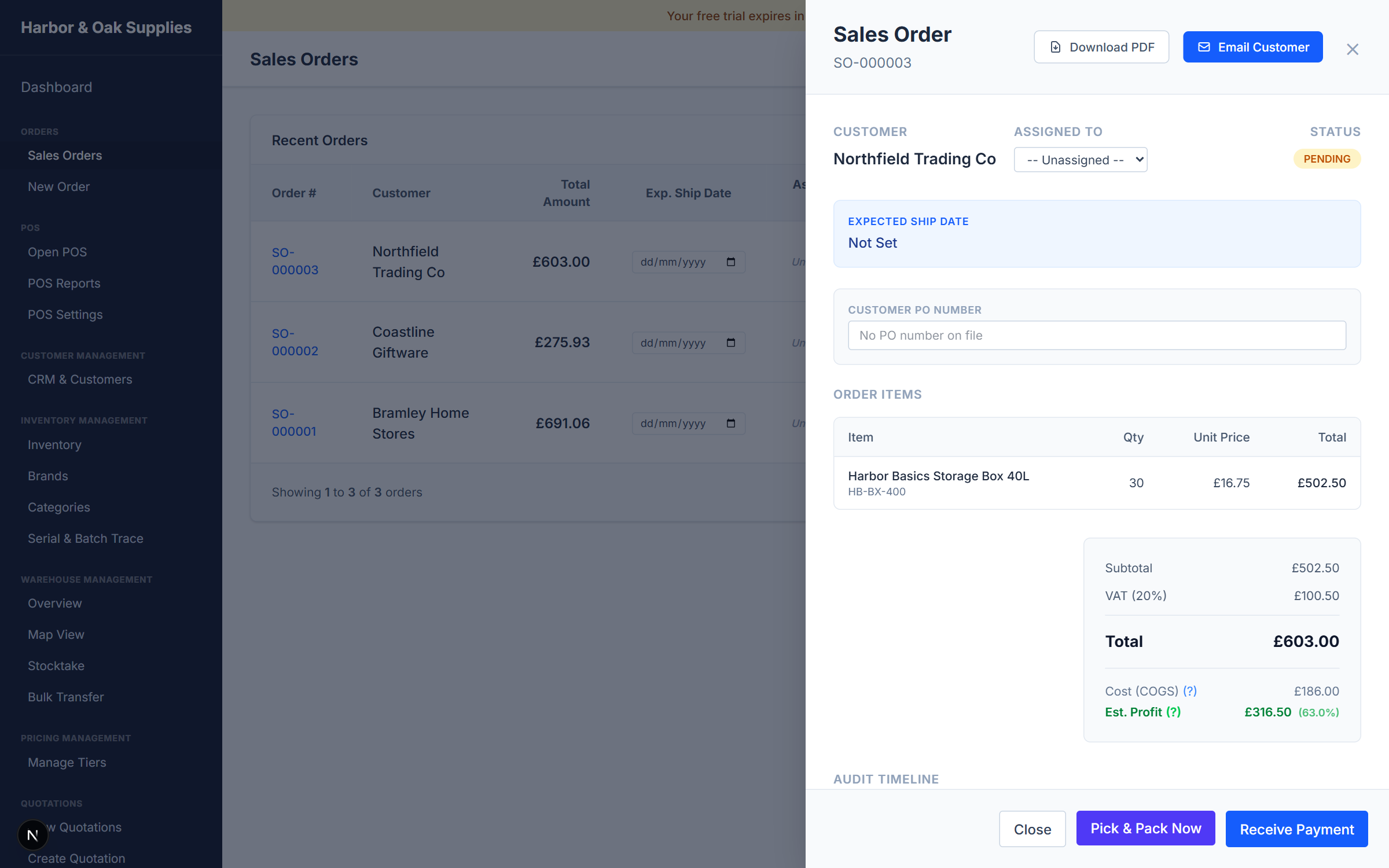
- PENDING: The order is fully allocated and confirmed. Stock is locked in the warehouse so it cannot be sold elsewhere.
- PROCESSING: The order has been released to the warehouse floor and is actively being picked or packed.
- SHIPPED: All items have been packed into shipping cartons, courier labels have been generated, and parcels have left the facility.
- DELIVERED: Delivery confirmation has been received from the courier carrier.
2. Managing Active Quotations
When bidding on wholesale jobs or preparing custom pricing for trade clients:
Creating a Quotation
- Navigate to Sales > Orders and click + New Order.
- Select the Customer (their assigned price tier, payment terms, and currency will apply automatically).
- Add products, quantities, and any custom line-item discounts.
- Save the order as a DRAFT / QUOTE.
Quick Actions: Download, Print & Email
On the Active Quotes dashboard, each quotation row features dedicated 1-click quick action buttons:
- Download PDF: Instantly downloads a clean, branded PDF quotation with your company logo, payment terms, and itemized VAT.
- Print: Opens a thermal or A4 print dialog formatted for immediate physical presentation.
- Email Quote: Opens the pre-configured email modal to dispatch the quotation directly to the customer's billing email with the PDF attached.
Converting Quotes to Confirmed Orders
Once the client accepts the quote:
- Open the quote and click Confirm Order.
- If inventory is available, the order immediately transitions to PENDING and reserves stock.
- If inventory is insufficient, you can choose to confirm as a Backorder.
3. Customer PO Numbers & Reference Tracking
B2B and wholesale customers often mandate that their internal Purchase Order (PO) Number appears on all fulfillment and accounting paperwork:
- Order Creation: Enter the client's reference in the Customer PO Number field when creating or editing an order.
- Delivery Notes & Packing Slips: The customer PO number is prominently rendered in the header of delivery notes and shipping paperwork.
- Dispatch Dashboard: The PO number appears in fulfillment queue tables, making it easy for dispatchers to identify orders when clients call with queries.
4. Duplicate Order Prevention & Data Integrity
To prevent accidental double-billing or duplicate picks:
- Submission Locks: Buttons are immediately disabled upon clicking "Confirm Order" or "Create Quote", preventing double submissions from rapid clicks.
- Deduplication Engine: Backend checks verify order contents and external eCommerce reference IDs before insertion, rejecting accidental duplicate payloads from webhooks or API resends.
5. Pre-Allocation & Automatic Backorders
When an order contains items that are currently out of stock:
- Select Pre-allocate / Backorder Order during order confirmation.
- The order enters the BACKORDER state without blocking your workflow.
- When stock arrives at receiving (via a Purchase Order intake or manual inventory adjustment):
- WMSBIZ automatically scans outstanding backorders on a FIFO (First-In, First-Out) schedule.
- Stock is allocated to the oldest backorders first.
- Once an order becomes 100% fulfilled, it automatically transitions to PENDING and appears on the warehouse picking board.
- Warehouse managers can also click Allocate Stock at any time to run an immediate manual allocation check.